OIDC SSO
Plan: Plane One, Plane Pro
Plane One enables custom SSO via any identity provider with an official and supported implementation of OIDC standards. This page uses Okta as an example, but provider-specific instructions will be published in phases.
OIDC
You will need to configure values on your IdP first, then on Plane.
On your preferred IdP
Create a Plane client or application per your IdP's documentation and configure as follows:
tip
domain.tld is the domain where your Plane app is hosted.
| Config | Key |
|---|---|
| Origin URL | http(s)://domain.tld/auth/oidc/ |
| Callback URL | http(s)://domain.tld/auth/oidc/callback/ |
| Logout URL | http(s)://domain.tld/auth/oidc/logout/ |
On Plane
Go to /god-mode/authentication/oidc on your Plane app and find the configs below.
tip
Your IdP will generate some of the following configs for you. Others, you will specify yourself. Just copy them over to each field.
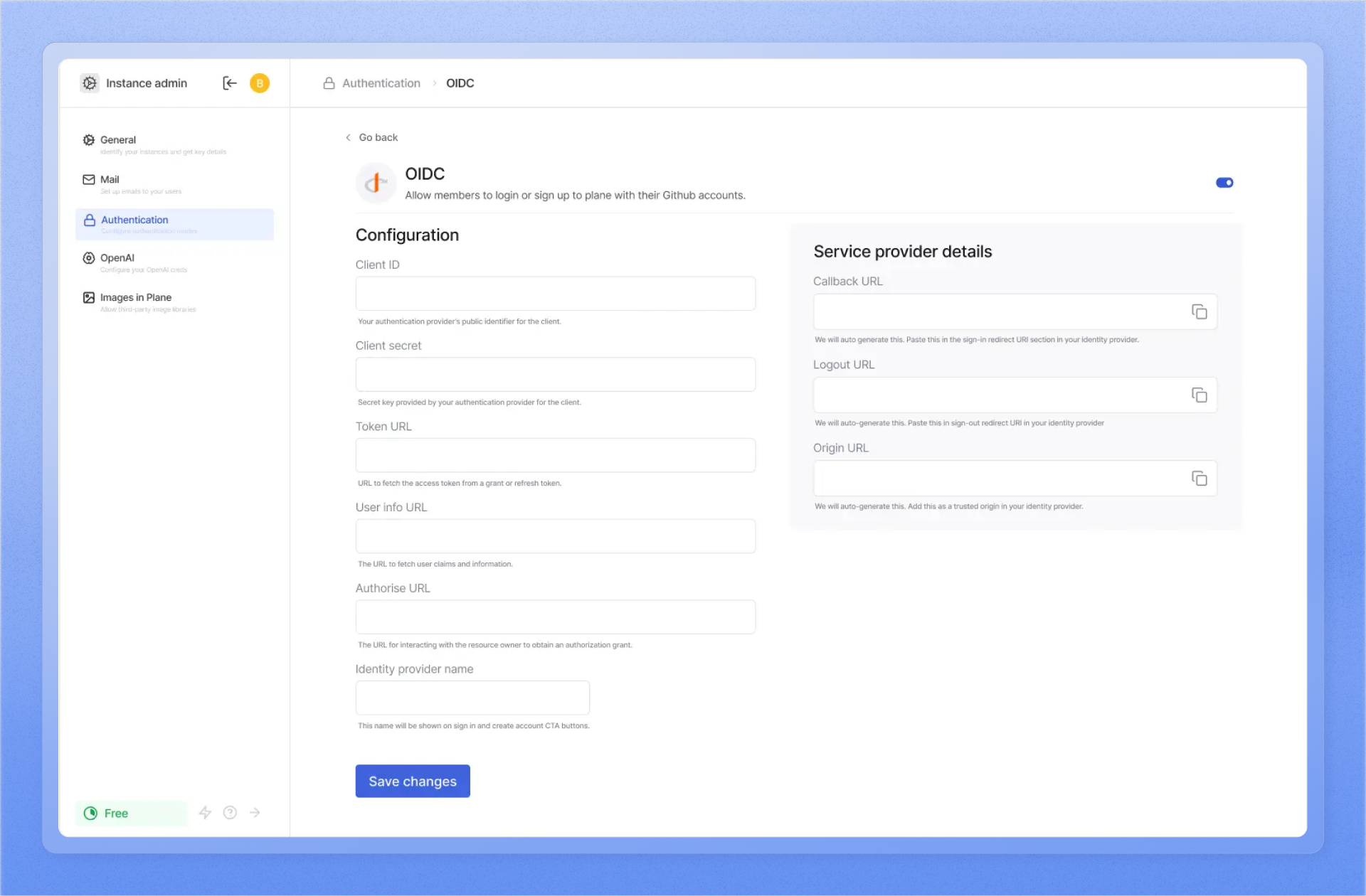
- Copy the
CLIENT_IDfor the Plane client or app you just created from your IdP and paste it in the field for it.- With providers like Keycloak, you must choose a unique ID per app you configure. With providers like Okta and Auth0, copy over the generated ID from your IdP. Typically, you will find it on the Plane application Home or Settings page on your IdP.
- Copy the
CLIENT_SECRETfor the Plane client or app you created from your IdP and paste it in the field for it. The secret is usually auto-generated. - Copy the
TOKEN URLfrom your IdP and paste it into the field for it on/god-mode/authentication/oidc/. This URL is typically in the.well-known/directory for the Plane app or client on your IdP. - Copy the
User info URLfrom your IdP and paste it into the field for it on/god-mode/authentication/oidc/. This is used to get the authenticating user'semail,first_name, andlast_namevalues from the IdP, and is also found in the.well-known/directory. - Copy the
Authorize URLfrom the.well-known/directory and paste it into the field for it on Plane's/god-mode/authentication/oidc/. This is the URL that Plane's login screen redirects to when users clickSign up with <name of IdP>orLogin with <name of IdP>.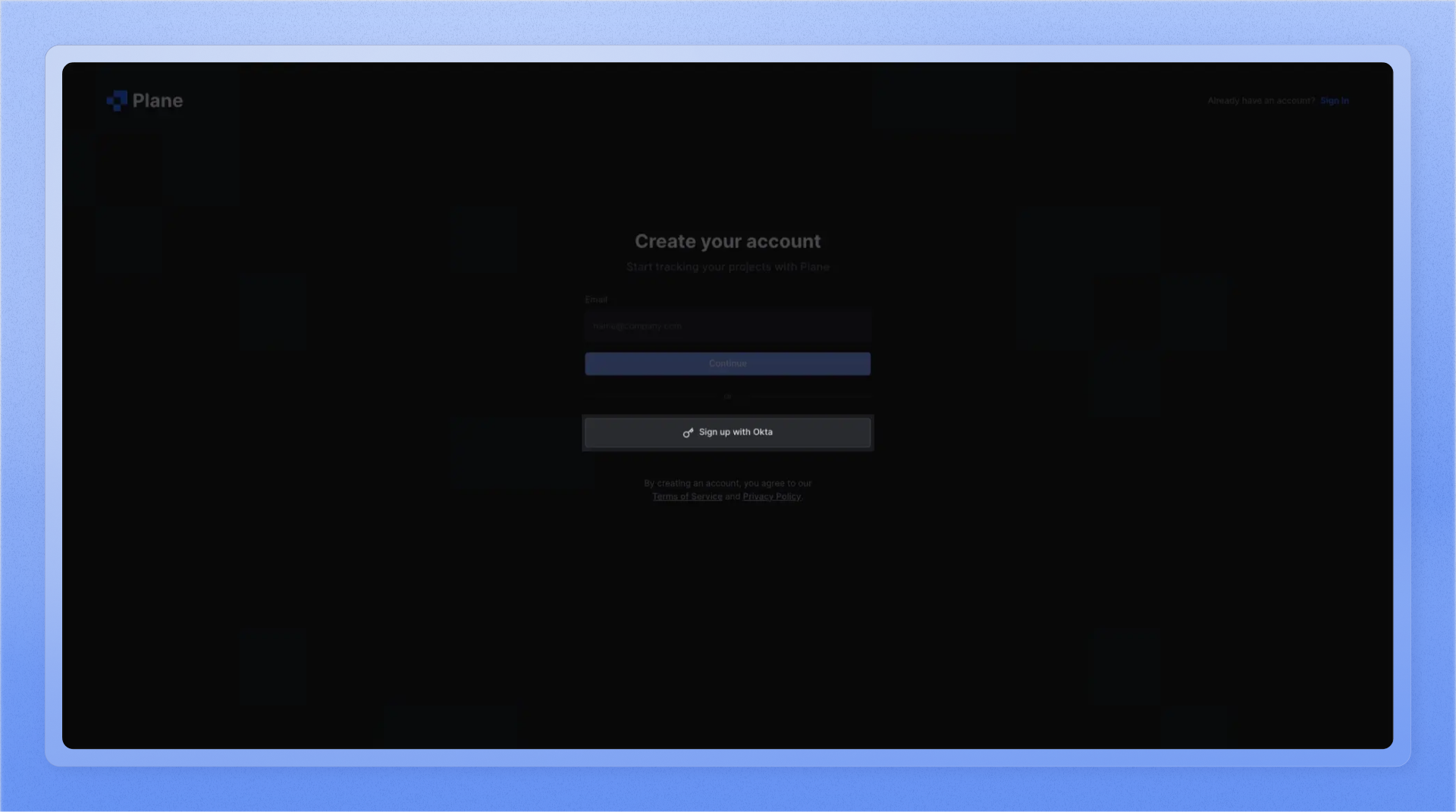 To test if this URL is correct, see if clicking the
 Login with <name of your IdP>button brings up your IdP's authentication screen. - Finally, choose a name for your IdP on Plane so you can recognize this set of configs.
